Forgot Your Password? How to Reset It
Last updated: October 22, 2025
If you can’t log in to your First Rule Contract Manager Apprentice account, don’t worry — resetting your password takes less than a minute. Follow the steps below to get back into your account.
Step 1: Go to the Sign-In Page
Head to your usual login page for Apprentice.
Enter your email address and click Next.

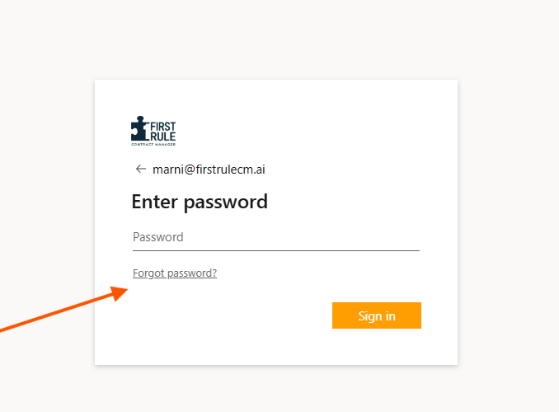
Step 2: Click “Forgot Password?”
On the password screen, click the Forgot password? link below the password field.
Step 3: Enter the Verification Code
You’ll receive an email from FRCM Standalone App (via Microsoft) with your account verification code.
Copy the code from the email.
Paste it into the “Enter code” field in the password reset window.
Click Next.
⚠ Note: The code expires after 30 minutes, so be sure to use it right away.


Step 4: Create a New Password
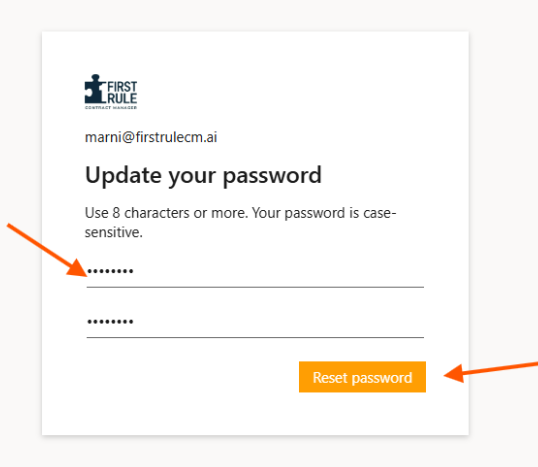
Enter your new password twice — once to create it and once to confirm it — then click Reset password.
Your password must be:
At least 8 characters
Case-sensitive
A mix of letters, numbers, or symbols is recommended
Step 5: Stay Signed In (Optional)
After resetting, you may be asked if you’d like to stay signed in.
You can click Yes to reduce how often you’re asked to log in, or No if you prefer to sign in each time.

🎉 You’re All Set!
Once your password has been successfully reset, you’ll be taken back to your FRCM dashboard and can continue working as usual.
If you don’t receive your verification email within a few minutes:
Check your spam/junk folder
Make sure you’re using the same email address tied to your FRCM account
If you still don’t receive it, reach out to support@firstrulecm.ai for help