How to Redline a Contract Using the OnlyOffice Editor
Last updated: February 23, 2026
The OnlyOffice Editor allows you to redline, comment, and negotiate contracts directly inside the Apprentice Tier.
Use this feature when you want to:
Edit contract language directly in the platform
Apply redlines during negotiation
Add comments for review
Avoid version control issues from emailing files back and forth
How to Open the Contract in OnlyOffice
Open the contract in your Apprentice account
Navigate to the contract workspace
The document will open in the embedded editor
How to Redline the Contract
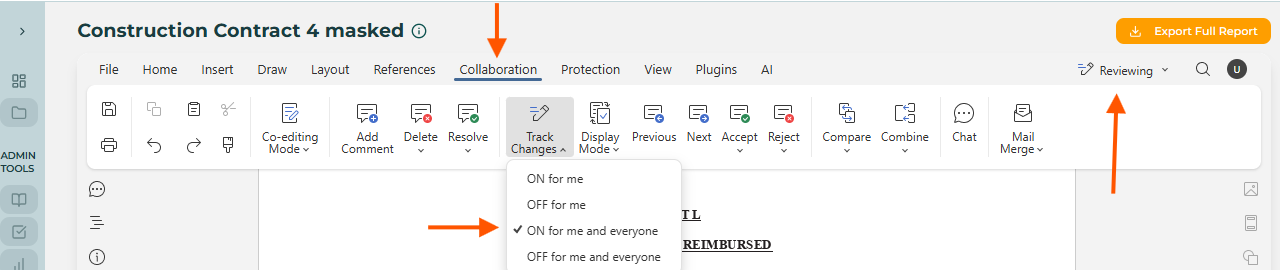
Go to Collaboration -> Track Changes -> Select On for me and everyone - notice that it should say you are in Reviewing mode (can be seen at the top right-hand side)
Edit text to insert redlines
Changes will appear as markups
When finished:
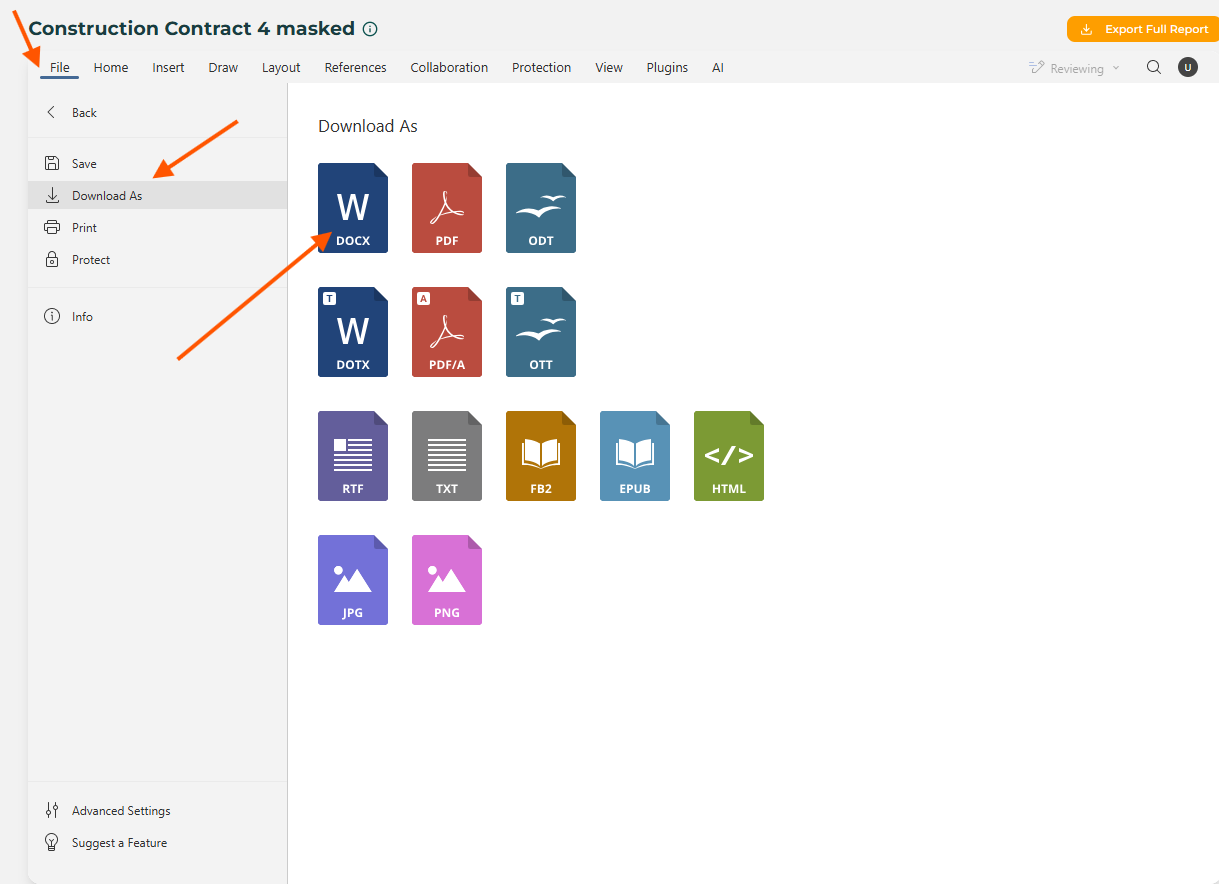
Go to File -> Download As -> Select DOCX and see your marked up document download and open up in Word