Link a Procore project to FRCM by Project Number
Last updated: September 15, 2025
Before you start
First Rule app is installed in Procore (Marketplace path).
You have an FRCM project created for the same job.
You can view the Procore Project Number (keep any leading zeros).
Steps
Find the Procore Project Number
In Procore, open the project and copy the Project Number (visible in the Project Admin Tool or at the top left of your screen when in a project). Copy it exactly, including leading zeros.
Open the matching project in FRCM
In FRCM, go to the project that should link to this Procore job.Enter the Procore Project Number
In FRCMs project settings (Integrations or Project Details), paste the Procore Project Number into the Project Number field.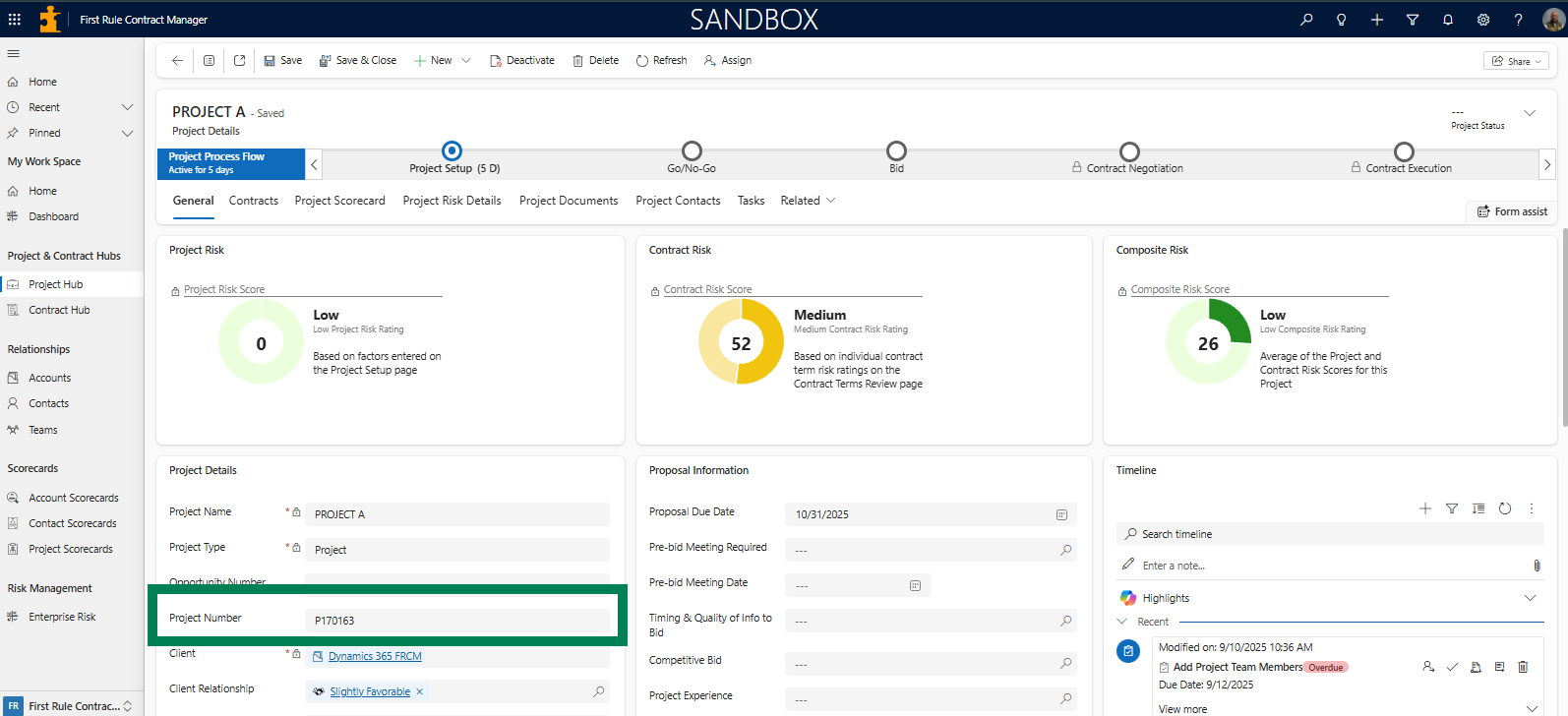
Save
Click Save project in FRCM.Verify in Procore
Where you can open the sidebar (enabled for this integration)
Use the First Rule sidebar while you’re on any of these tools/pages in a project (Note: The sidebar only appears on specific tools/pages):
Prime Contracts — list/detail pages and create/edit forms
Commitments (Subcontracts/POs) — list/detail pages and Create/Edit Commitment flows
Change Events — list/detail and create/edit
Change Orders (Prime & Commitment COs) — list/detail and create/edit
RFIs — list/detail and Create/Edit RFI
Submittals — list/detail and Create/Edit Submittal
Documents — file viewer/detail (quick access to the executed contract PDF)
Select Document/Contract from Dropdown in Side Panel
Ask Marten, Contract Summary, and Training tabs respond for the selected contract.(Note: Only contracts process by the AI and in "Ready for Review" or a later status in FRCM will show up in the dropdown)