Use Case: Negotiate with Word Add-In & Compare Documents
Last updated: November 7, 2025
The Negotiate with Word Add-In feature lets you redline, edit, and negotiate your contracts directly within Microsoft Word.
Follow these steps to make the most of it:
🪜 Step-by-Step Instructions
Upload Your Contract
From your Project or Contract Hub, upload the contract you want to review.
Wait for AI Review to Complete
The AI will process the contract and identify key terms and risks.
You’ll know it’s ready when you receive an email notification and the contract’s status updates to “Ready for Review.”
Open the Negotiate with Word Add-In Tab
Navigate to your project’s Contracts tab and select Negotiate with Word Add-In.

Edit in Microsoft Word (Desktop Version Recommended)
Choose to open the contract in Word Desktop for the full editing experience.
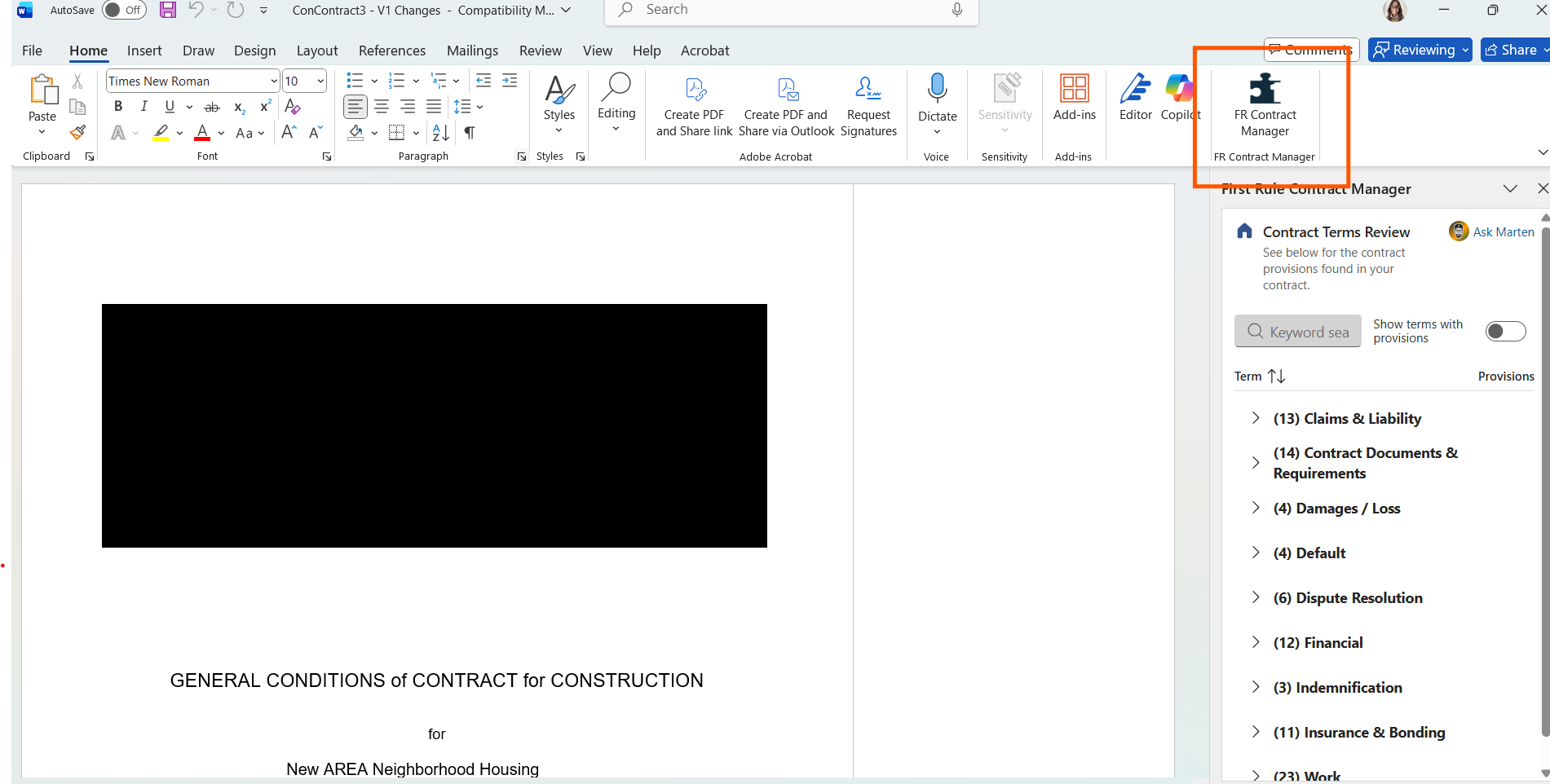
Launch the FRCM Word Add-In
Once in Word, click the FR Contract Manager button in the top-right corner of your toolbar.
Switch to Review Mode
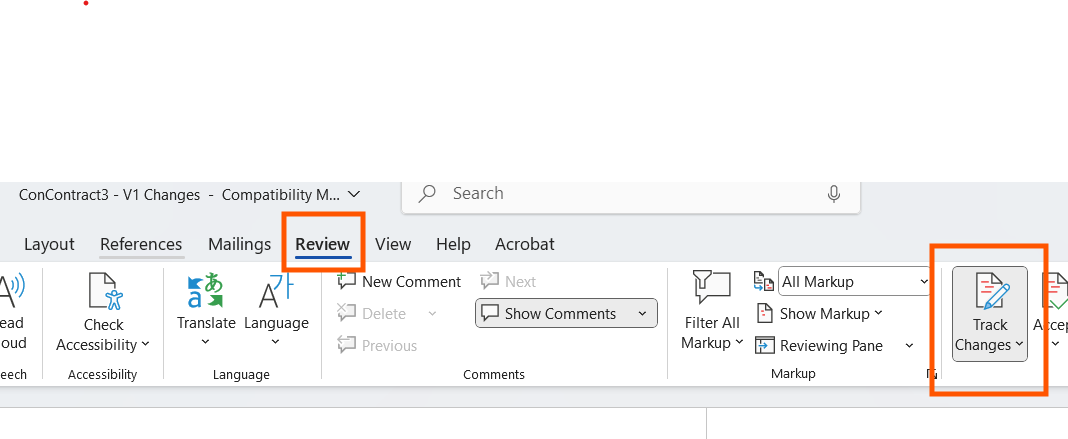
In Word’s top navigation bar, select the Review tab.
Enable Track Changes
Click Track Changes so all your edits are visible for negotiation and review.
Begin Redlining
Edit, comment, and propose revisions as you normally would when negotiating a contract.
Send Your Marked-Up Contract
Once you’ve finished, send the redlined version to the other party.
You can do this directly within FRCM via external contact portal or via email — whichever your workflow prefers.
Receive and Upload the Counterparty’s Version
When you receive their updated contract, upload it back into Contract Documents (⚠ not as a new contract shell).

Compare Versions
Use FRCM’s Compare Documents feature to line up your original and their marked-up version side by side.
Review differences, connect terms, and continue your negotiation process with clarity.
