Navigate to the FRCM Word Add-in
Last updated: November 7, 2025
This article walks through how to use the FRCM Word Add-in.
Prerequisites
Contract Status must be Ready for Review.
User must have access to Microsoft Word (online or desktop).
1⃣ Upload a Contract
Upload a contract file and wait for the Contract Status to change to Ready for Review.
The Negotiate with Word Add-in tab will then appear.

2⃣ Open the Word Add-in
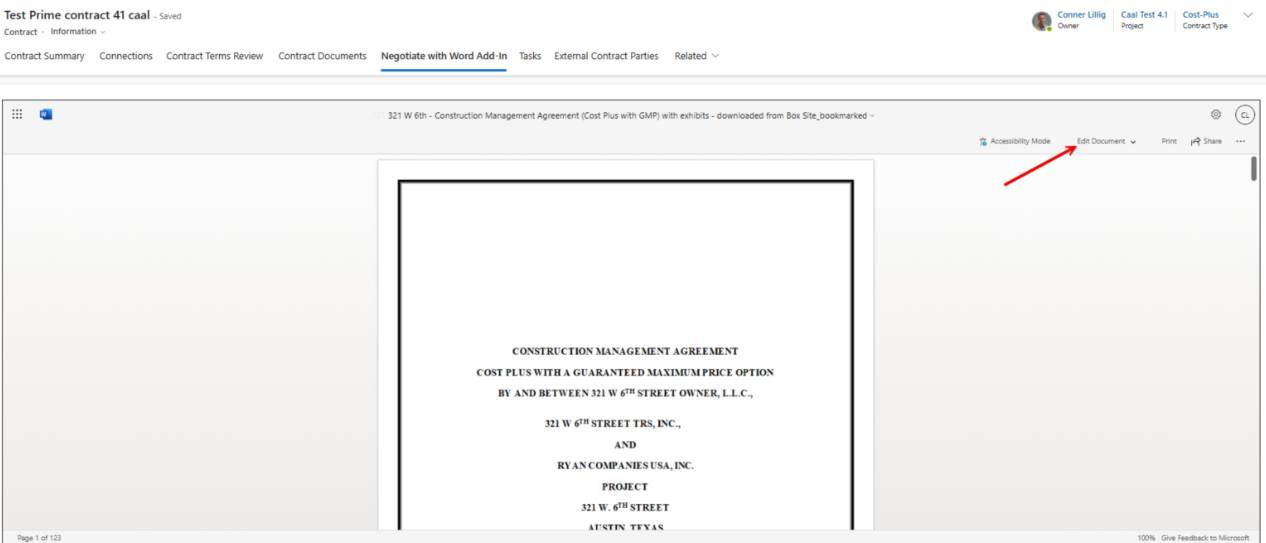
Select the Negotiate with Word Add-in tab.
Click Edit Document to begin editing the contract.
3⃣ Choose Your Editing Option
When selecting Edit Document, you’ll see two options in the dropdown:
a. Edit – Opens the document directly in the browser tab.
b. Open in Desktop (recommended) – Opens the document in the Microsoft Word Desktop application, allowing access to full Word functionality.

4⃣ Access Add-ins in Word
Once your document opens (either online or desktop):
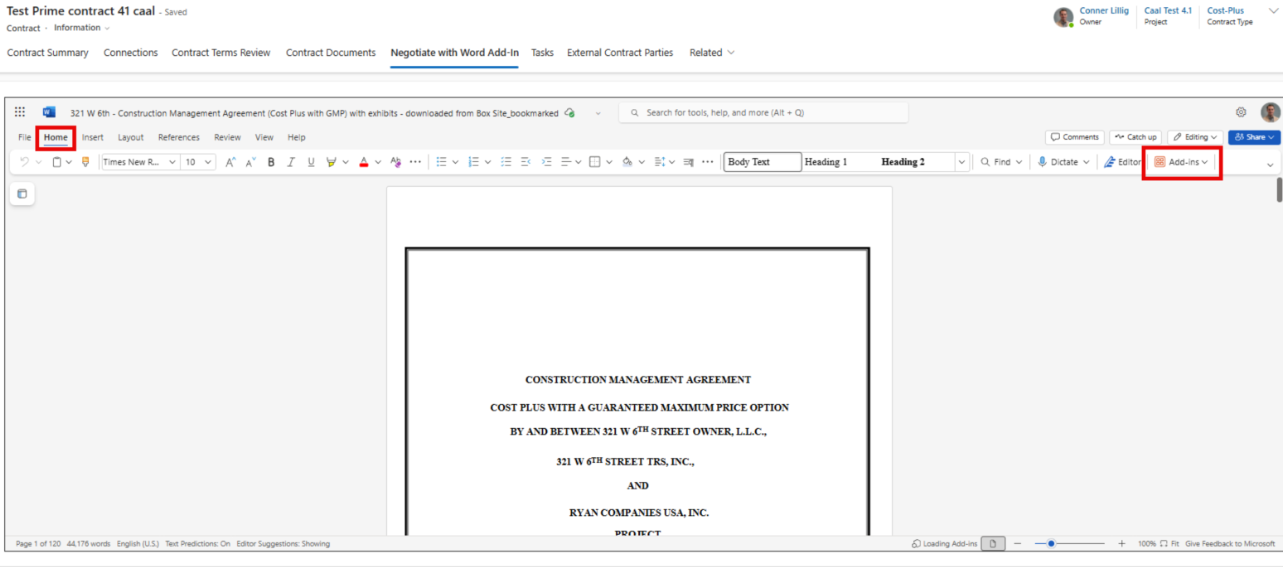
Navigate to the Home tab.
Select Add-ins from the ribbon toolbar.
5⃣ Select the FRCM Word Add-in
From the list of available add-ins, choose First Rule Contract Manager.

6⃣ Review the Contract with First Rule Contract Manager
The First Rule Contract Manager panel will open on the right-hand side.
This add-in allows you to analyze clauses, review risk categories, and manage contract terms directly within Word.
