How to Use Connections & Terms Across Contracts to Compare Prime and Subcontracts
Last updated: April 27, 2026
Connections let you link two contracts together and compare their terms.
What It Does
The Terms Across Contracts feature allows you to view and compare how specific contract terms appear across multiple contracts within a project. This is useful when managing addenda or related agreements and you want to ensure consistency — or identify differences — in how key terms are handled across your contract portfolio.
Step 1: Navigate to Your Project
From the left navigation panel, click Project Hub under the Project & Contract Hubs section. Open the relevant project (e.g., AH Project).
On the project record, click the Contracts tab to view all contracts associated with the project.

Step 2: Open the Target Contract
From the contracts list, click the contract you want to review (e.g., AIA Test). This opens the individual contract record.
Step 3: Link Related Contracts via Connections
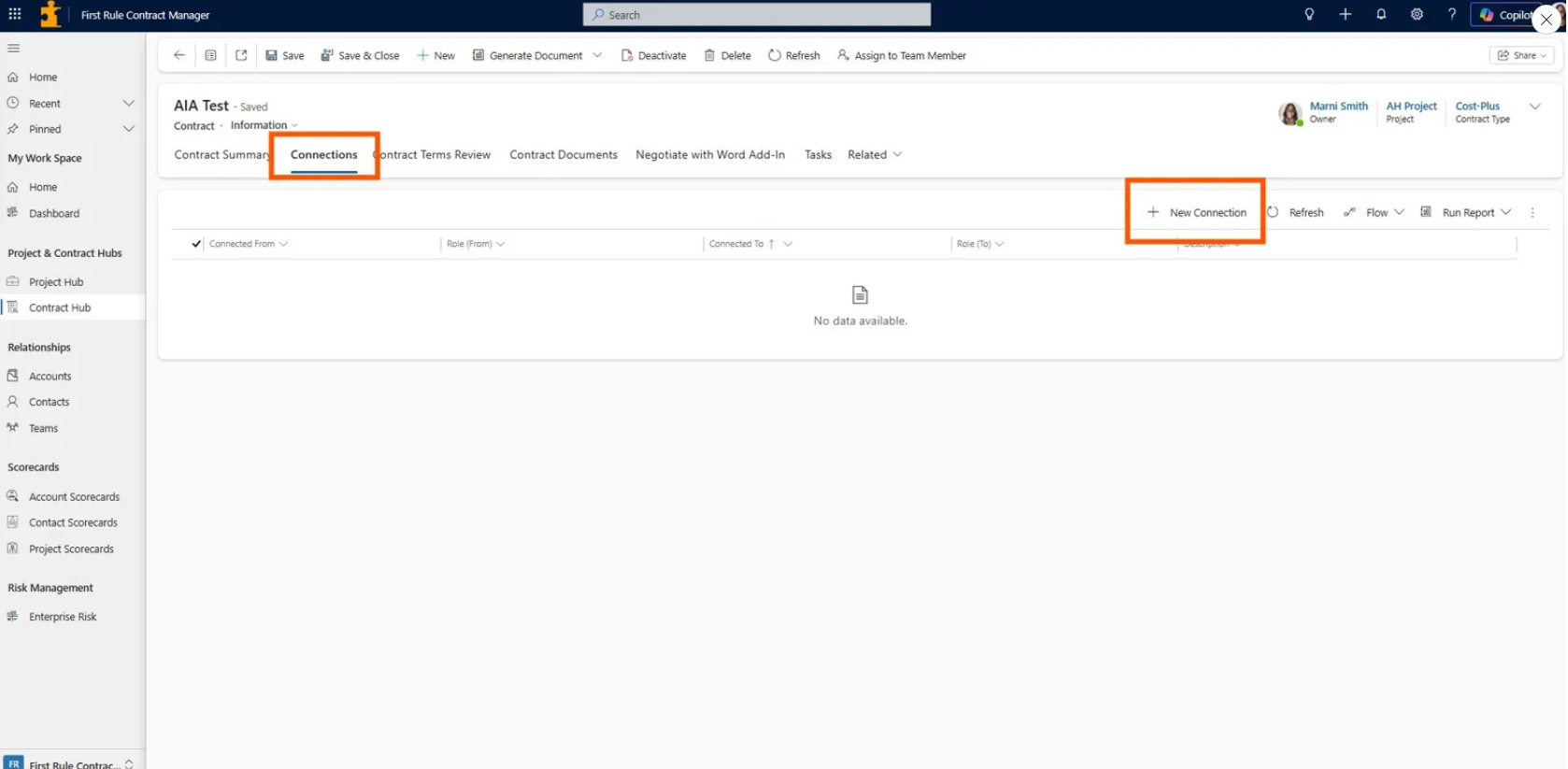
You'll need to associate contracts before comparing terms, navigate to the Connections tab on the contract record and click + New Connection.
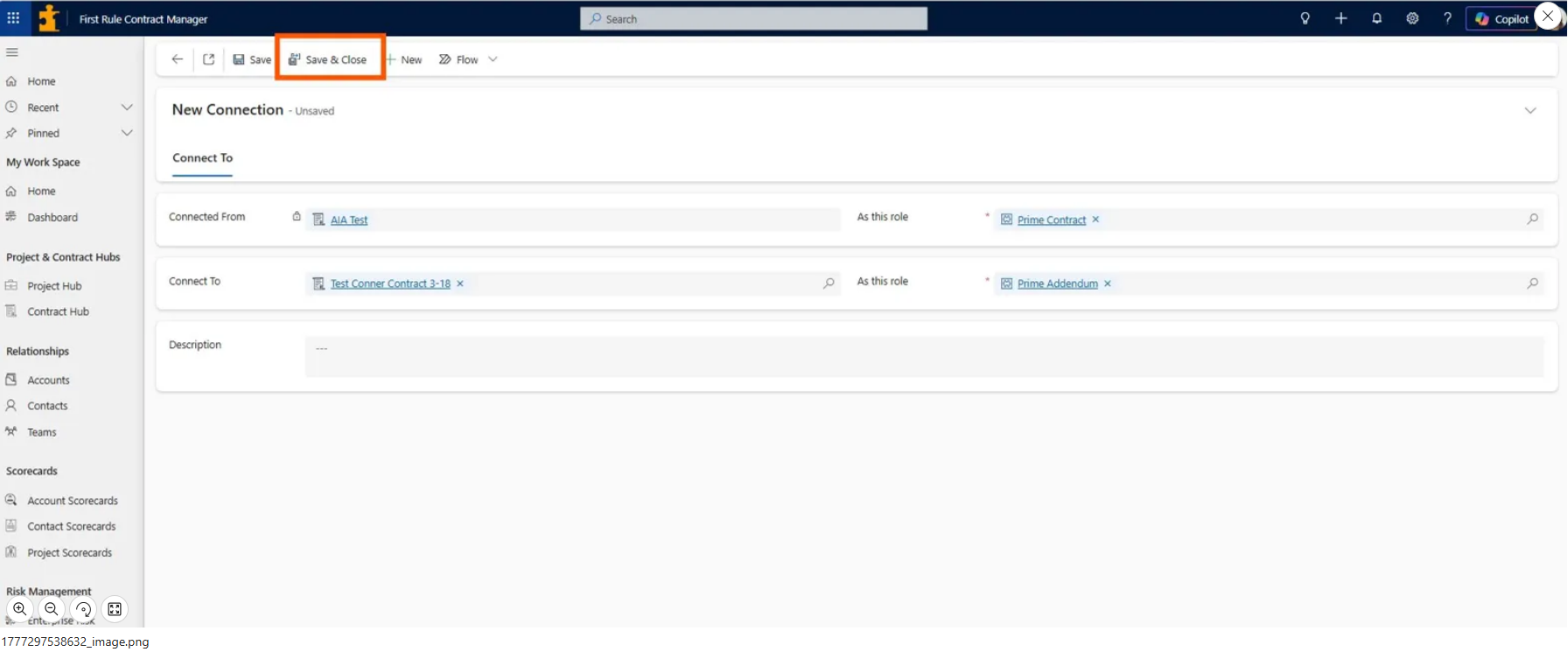
On the New Connection form:
Connected From — the current contract (e.g., AIA Test) with its role (e.g., Prime Contract)
Connect To — the related contract (e.g., Test Conner Contract 3-18) with its role (e.g., Prime Addendum)
Click Save & Close to save the connection.
Tip: Establishing connections between a Prime Contract and its addenda enables the Terms Across Contracts view to pull data from all linked documents.
Step 4: Open the Contract Terms Review Tab
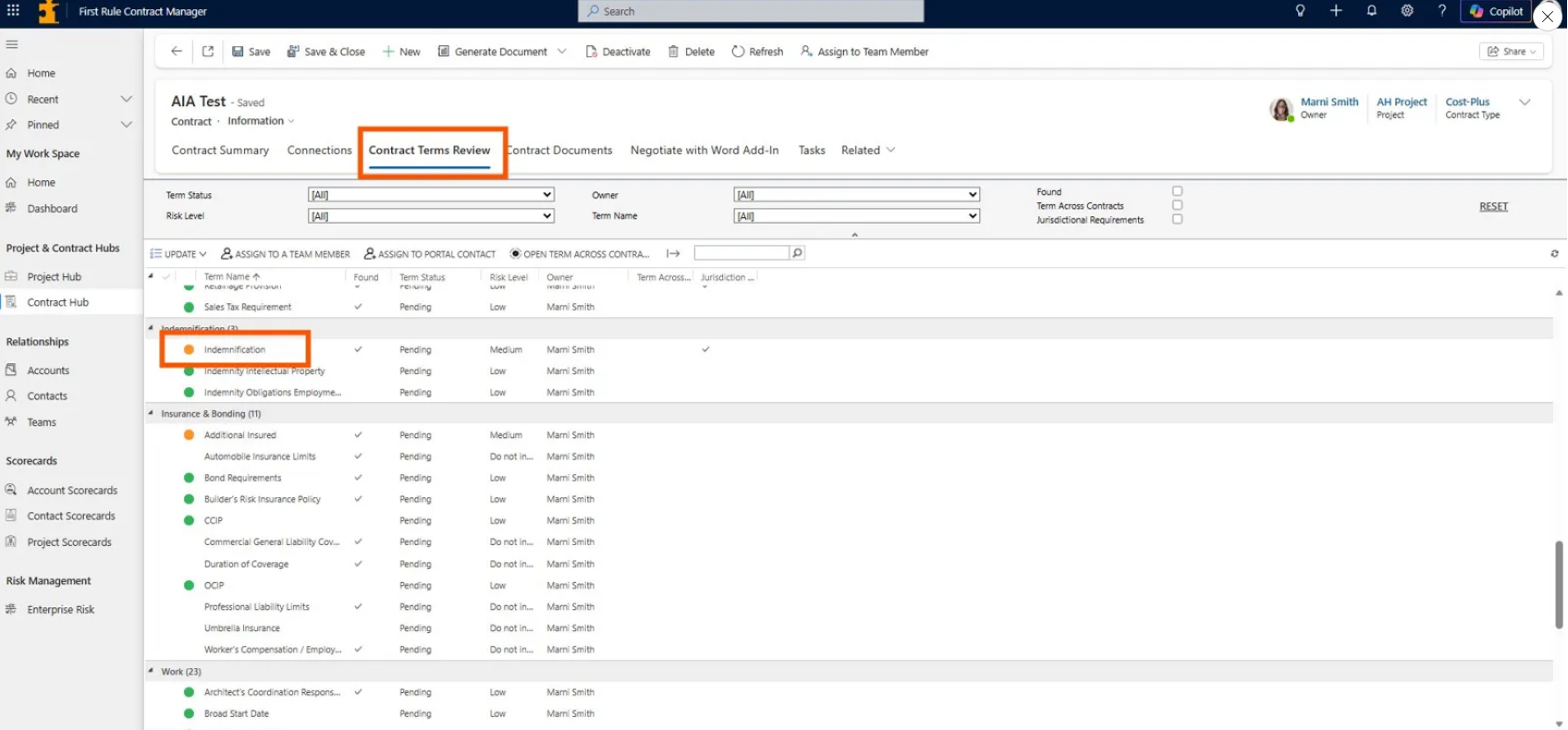
On the contract record, click the Contract Terms Review tab. This displays all extracted terms for the contract, organized by category (e.g., Indemnification, Insurance & Bonding, Work).
Each term shows:
Column | Description |
|---|---|
Term Name | The name of the extracted contract term |
Found | Checkmark if the term was located in the document |
Term Status | Current review status (e.g., Pending) |
Risk Level | Assessed risk level (Low, Medium, or blank if not applicable) |
Owner | The team member responsible for reviewing the term |
Term Across Contracts | Checkmark if this term appears in connected contracts |
Jurisdictional Requirements | Indicates if the term has jurisdictional relevance |
⚠ Seeing an Error on the Contract Terms Review Tab?
No worries — this just means your account needs a quick license adjustment on our end. It's an easy fix! Simply email FRCMsupport@firstrulecm.ai with a screenshot of the error and we'll get you sorted out right away.