Contract Upload: Triage vs. Everything Else
Last updated: June 10, 2025
This guide provides essential step-by-step instructions for uploading contracts effectively, specifically focusing on where the defining field is for the Triage process. It simplifies the task by breaking down the actions needed to ensure a smooth upload experience.
Click "Upload Document"

Click the "Project" field.

Fill out the required fields for a new Project then press "Save and Close".

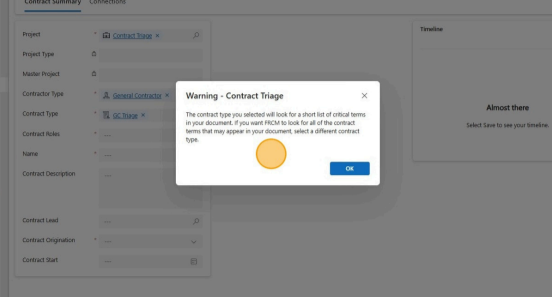
In the “Contract Type” field, this is where you will either select (GC or Sub) Triage - if you select Triage, you will then only see the quick hit list of Contract Terms that you have previously selected. If you select any other option, you will get the full list of 100+ terms.

A warning will pop up just in case - making sure you’d like to move forward with the Triage feature. Click "OK" if you'd like to move forward with Triage.
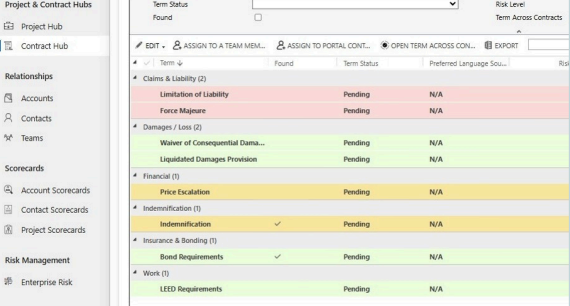
For example - this is what our First Rule triage feature looks like. You will see that there are only a handful of terms here...
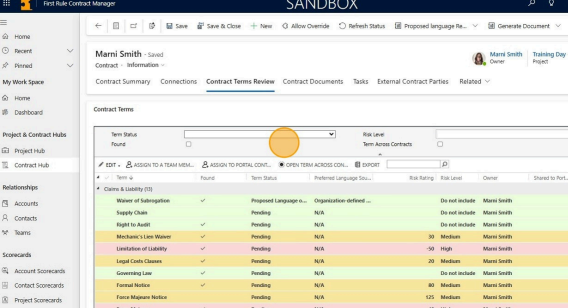
...versus the full 100+ list of Terms like you see here...