How To: Revise a Contract Term
Last updated: June 10, 2025
This guide provides a step-by-step approach to revising contract terms effectively, ensuring clarity in responsibilities between parties. It simplifies the process by directing users through specific actions, making it easy to manage legal agreements.
Navigate to the "Contract Terms Review" tab of the contract you'd like to work on.
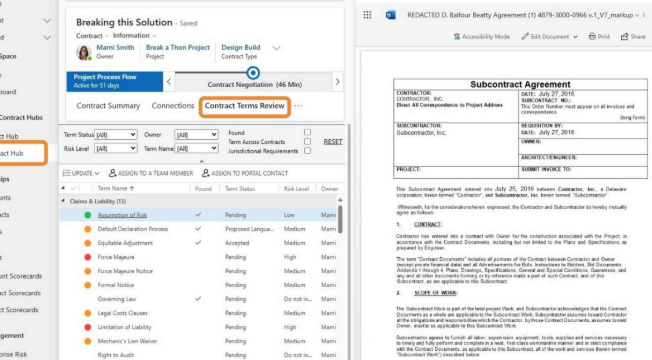
Click the term you'd like to begin revising. In this scenario, let's look at "Assumption of Risk".
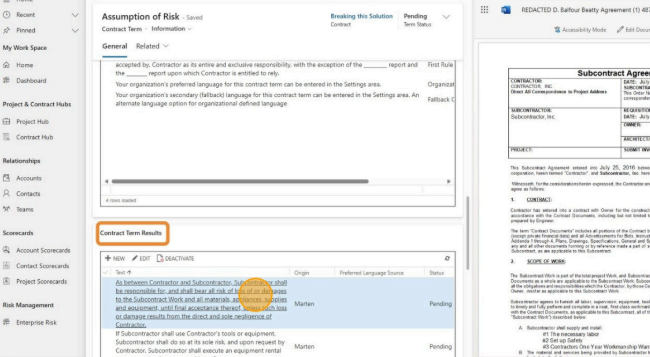
Scroll down the landing page to the Contract Term Results window. You will see all of the areas that said term is found within the contract. Select the text you'd like to begin revising.
The top text box contains the exact text from the contract. Select the drop-down menu to review the Preferred Language options.
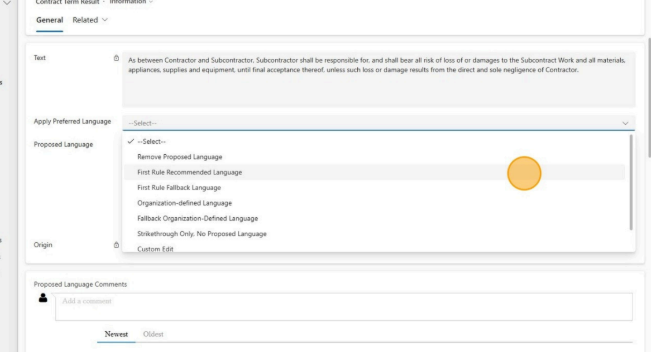
Once you have selected the category you would like to use, press "Save".

After you click "Save", then the language will appear in the Proposed Language box, and you can continue making whatever edits you'd like.
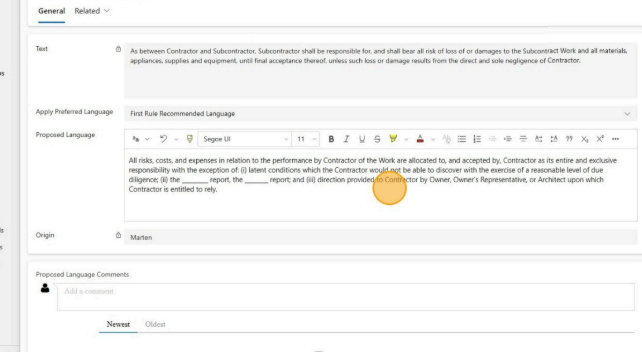
Once you've finished making all of the changes to this term, click "Save & Close" at the top of the screen.
You will see that the status has now been updated on the text you adjusted.
