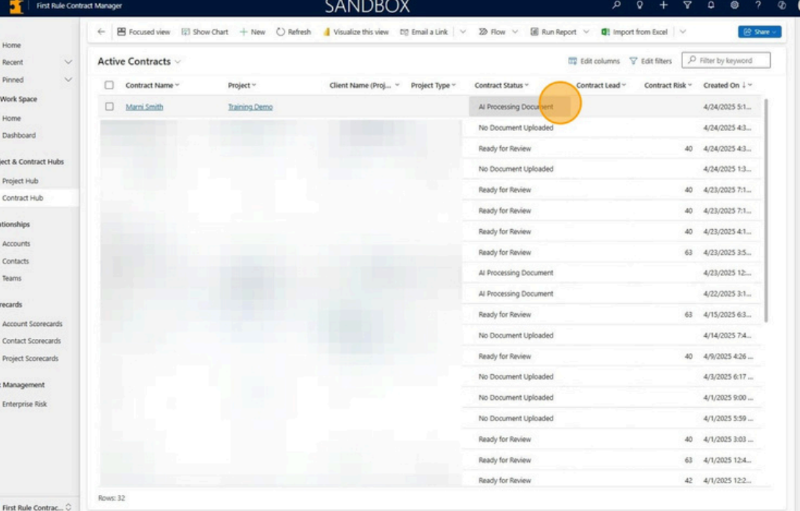
How To: Upload a Document
Last updated: June 10, 2025
This guide provides a straightforward process for uploading a document, making it essential for users who need to manage contracts efficiently. By following these steps, individuals can navigate the platform with ease, ensuring accurate document submission and retrieval.
Navigate to your homepage and press "Upload Document"
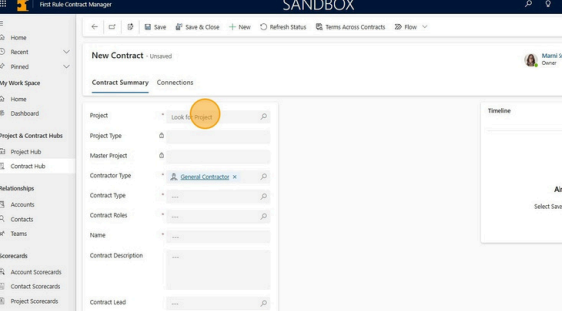
Click the "Look for Project" field.
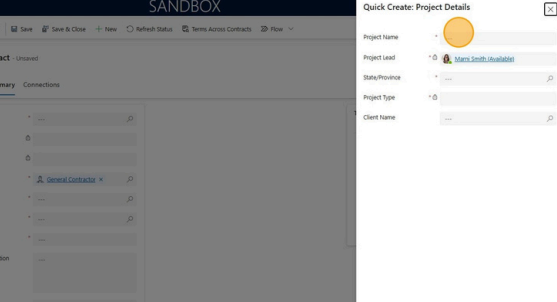
Fill out the required fields for the project details.
Once you have finished filling out the required fields, press "Save and Close"
Finish completing the required fields for the contract, then press "Save" at the top of the screen.

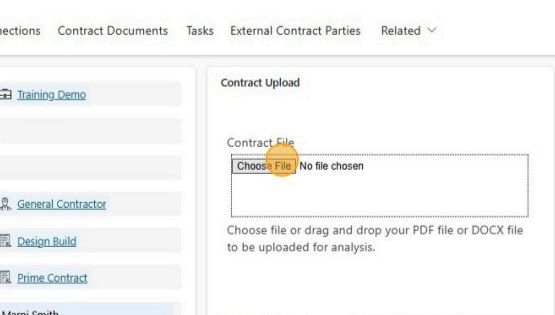
The page should update with the "Contract Upload" box.
Choose your file, then press "Confirm" and press "Save" at the top of the screen.
The Contract Status should update after a minute or so to "AI Processing Document"

Click into your Contract Hub and you will see your new contract and can check on the Contract Status at any time.