How to: Use the "Upcoming Tasks" Panel on Your FRCM Homepage
Last updated: July 17, 2025
Need to set a reminder for yourself or your team? Want to make sure nothing slips through the cracks during contract reviews? Say hello to the Upcoming Tasks panel — your personal project to-do list, right on your homepage.
Here’s how to create and manage a task in just a few clicks:
Step 1: Head to Your Homepage
From anywhere in the platform, click Home in the left-hand menu to return to your main dashboard.
Step 2: Create a New Task
Look to the Upcoming Tasks section on the right-hand side and click Create Task.
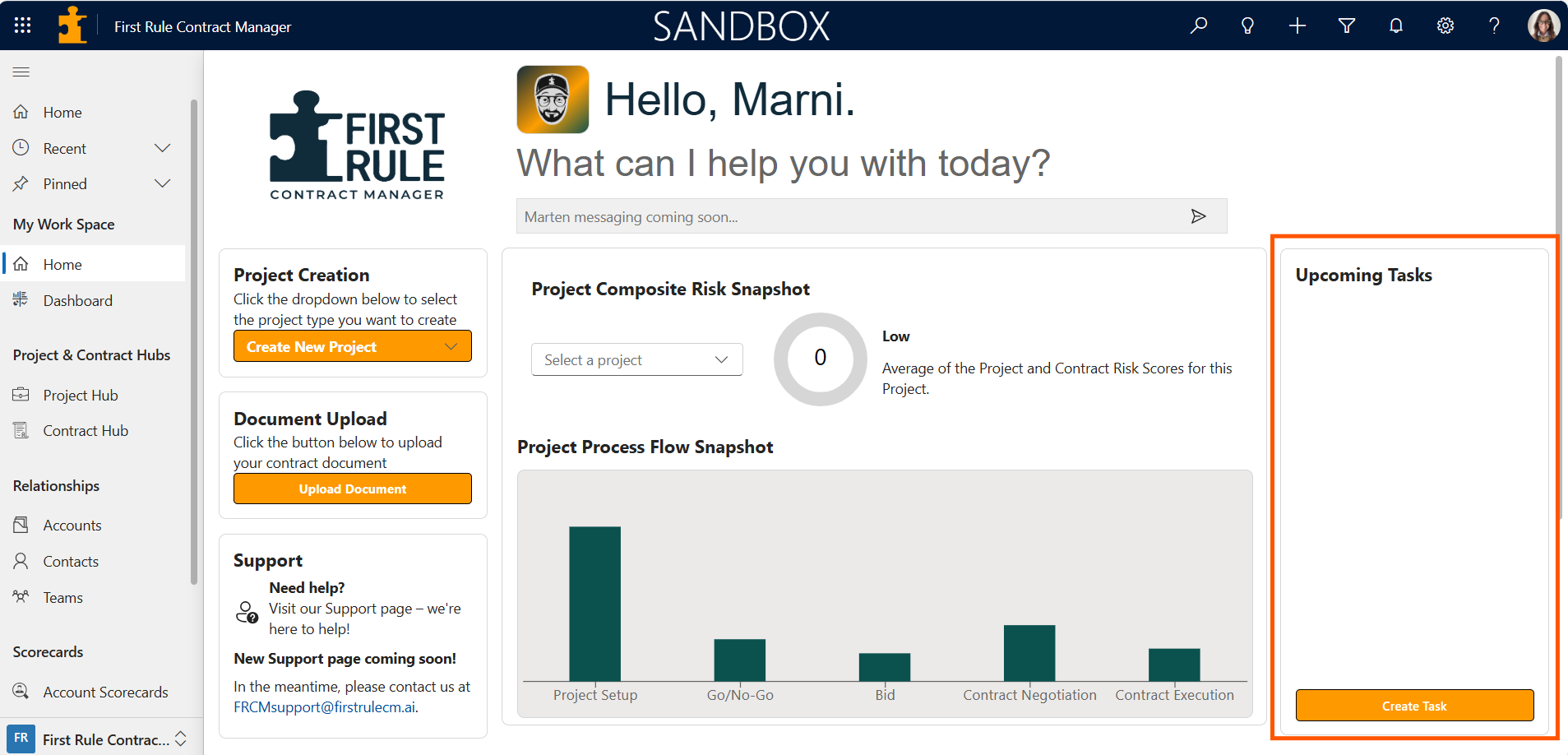
Step 3: Fill Out the Task Details
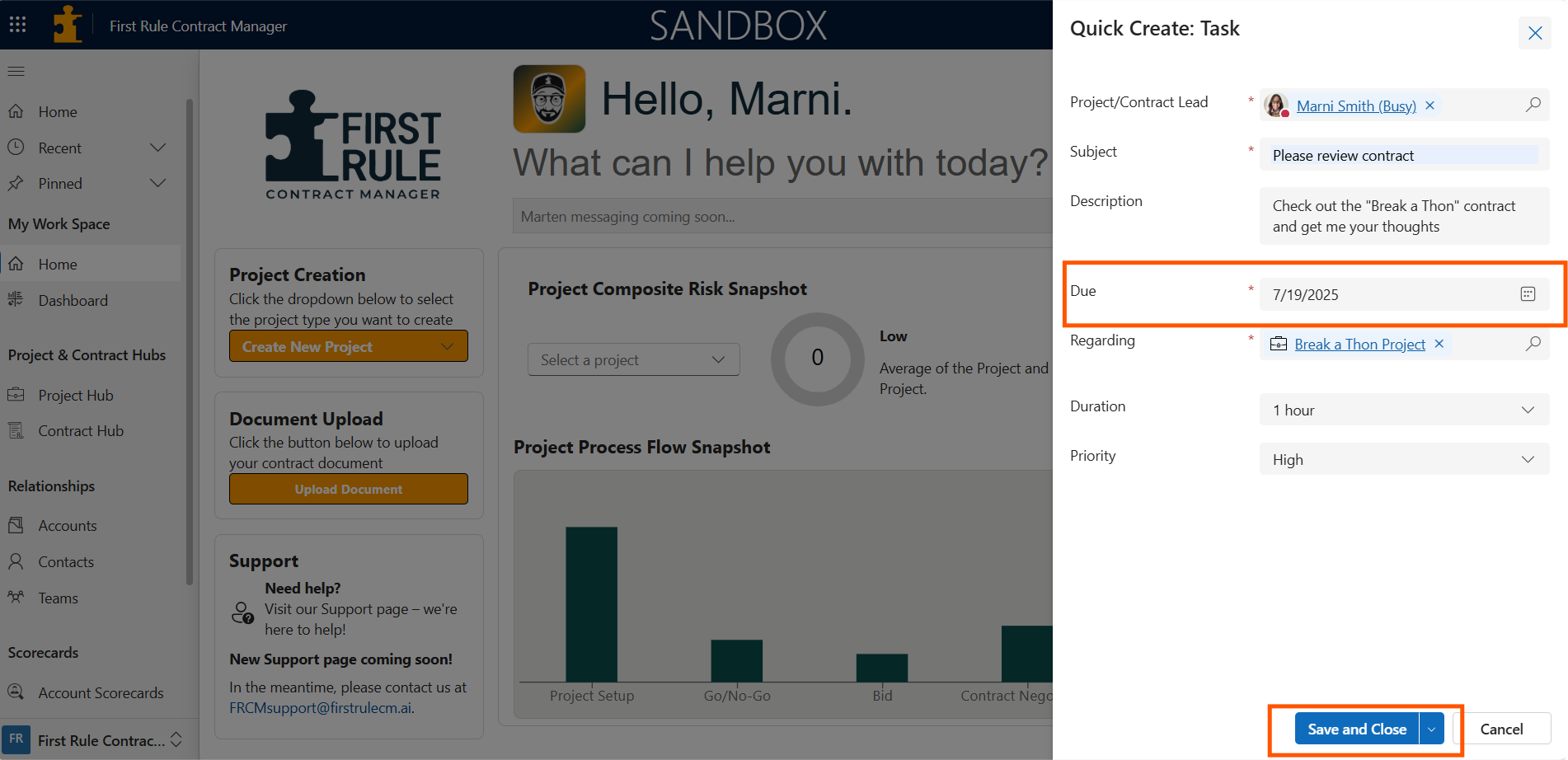
In the Quick Create: Task window, fill in the following required fields:
Project/Contract Lead – Who’s responsible?
Subject – A quick title (e.g., “Review subcontractor edits”)
Description – Add context, instructions, or links
Due Date – When does this need to be completed?
Regarding – Tie the task to a specific project
🧠 Heads Up: If your due date is more than one week away, it won’t appear in the “Upcoming Tasks” box on the homepage — but don’t worry! It will still live in the Project’s Task tab, and you’ll be able to track it there.
Step 4: Save It
Click Save and Close to officially create the task.
Step 5: View the Task on Your Homepage
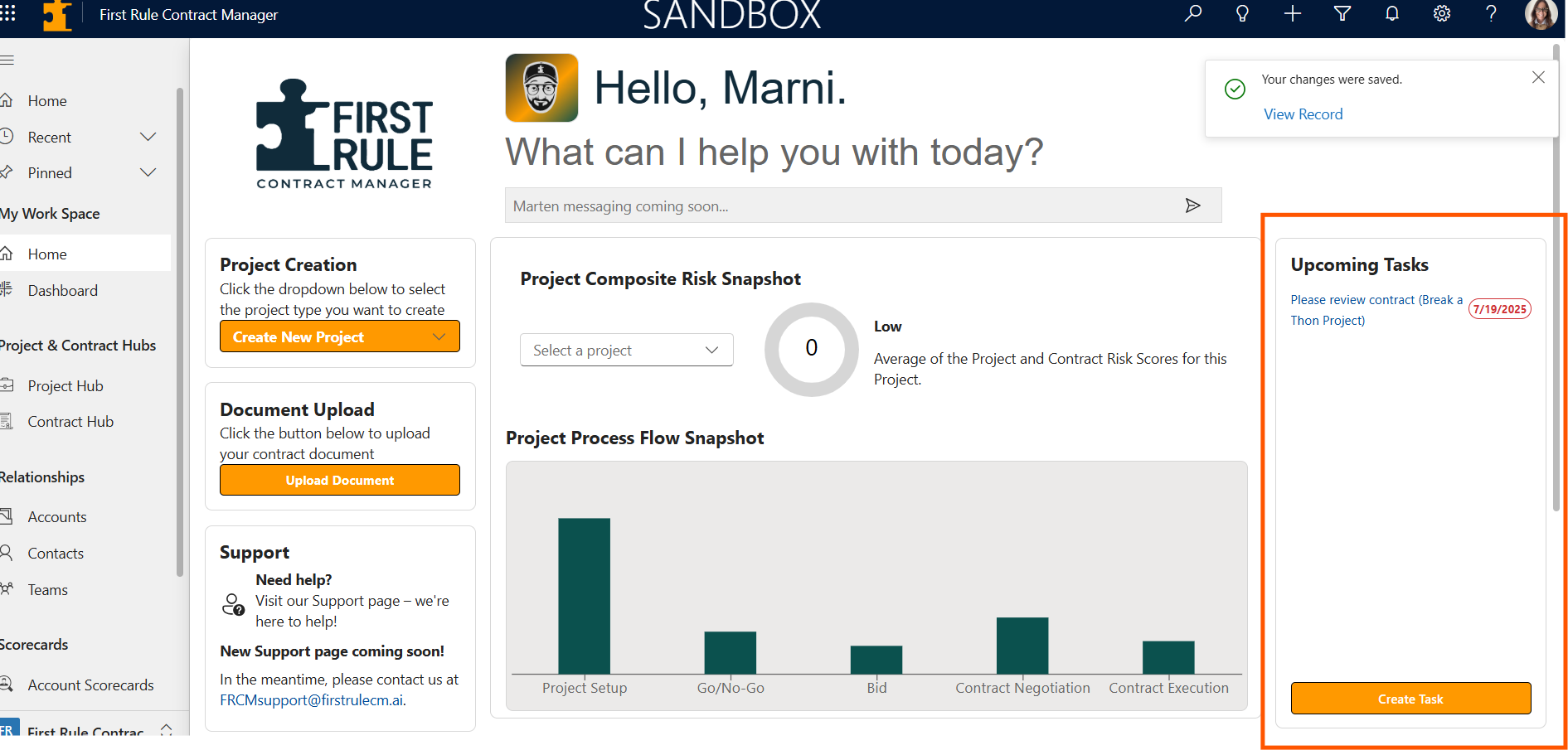
If the due date is within one week, your new task will now appear in the Upcoming Tasks panel with the due date clearly displayed.
Step 6: Mark It Complete
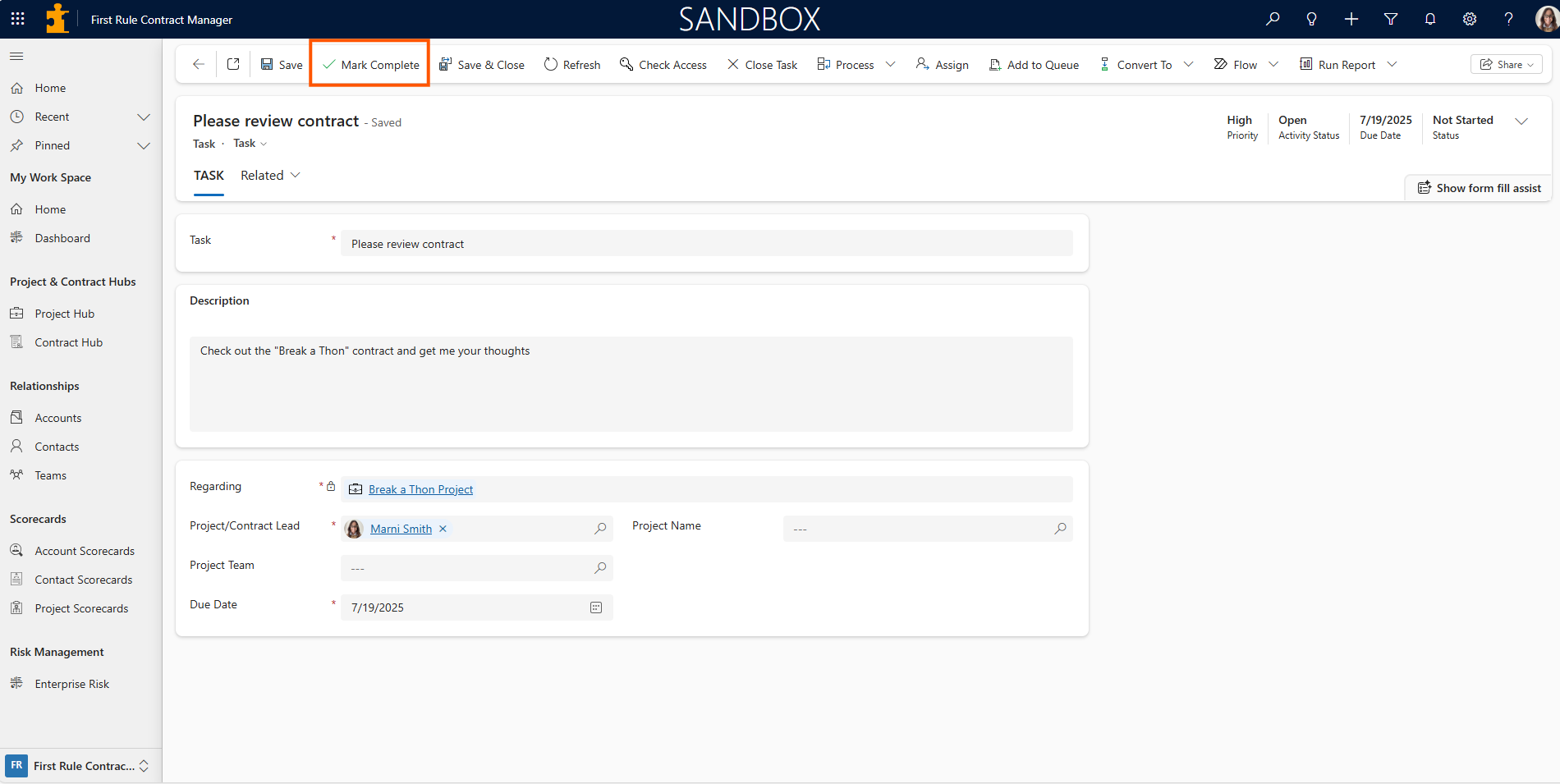
Need to close it out? Click on the task link to open it in the project record, where you can:
Update the status
Add notes or comments
Click Mark Complete to close it out
Still have questions? We’re here to help! Reach out at FRCMsupport@firstrulecm.ai