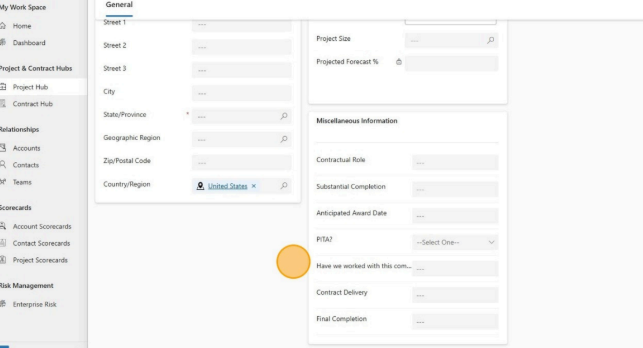
How To: Add a Miscellaneous Field
Last updated: June 10, 2025
This guide offers a straightforward approach to creating and managing miscellaneous fields in the Contract Manager System, enhancing data organization and client interaction. By following the outlined steps, users can efficiently customize their system to capture essential information, such as previous engagements with clients.
Navigate to the platform and make sure you are located on the Home Page.
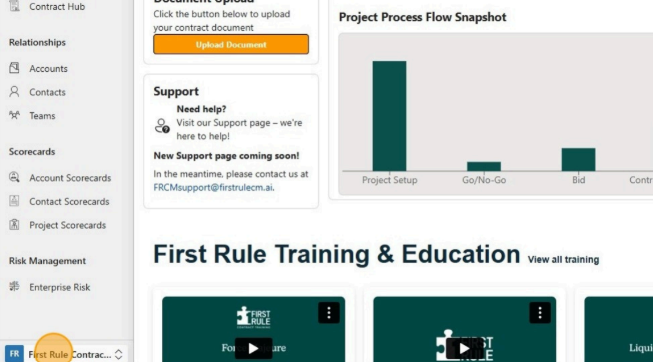
Click "First Rule Contract Manager" in the bottom left corner of the window.
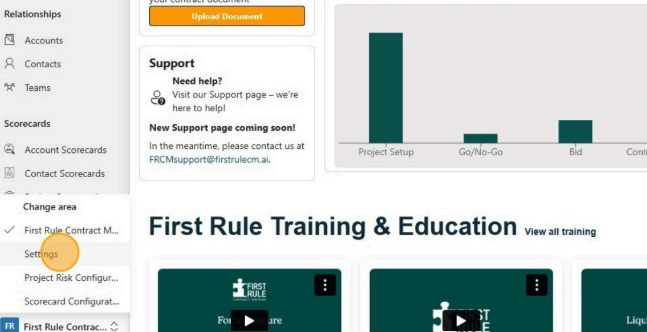
Click "Settings"
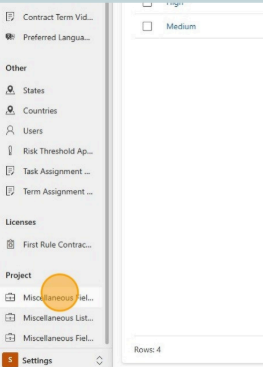
Click "Miscellaneous Fields"
Click "New"
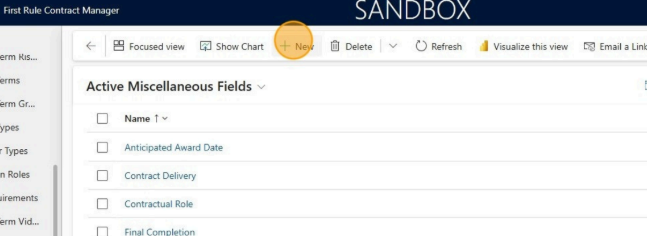
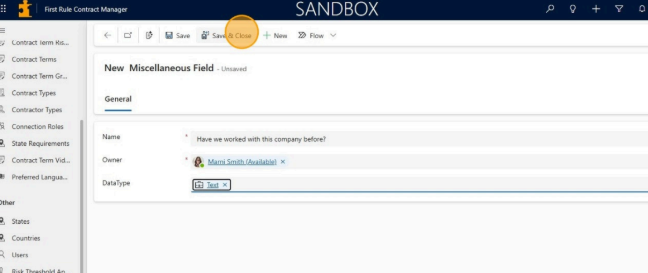
Click into the "Name" field and input what you'd like to add.

Select the "DataType" and click "Save & Close"
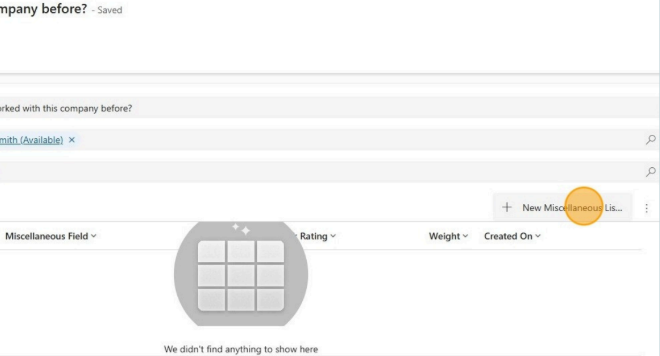
Click back into the Field you just added.
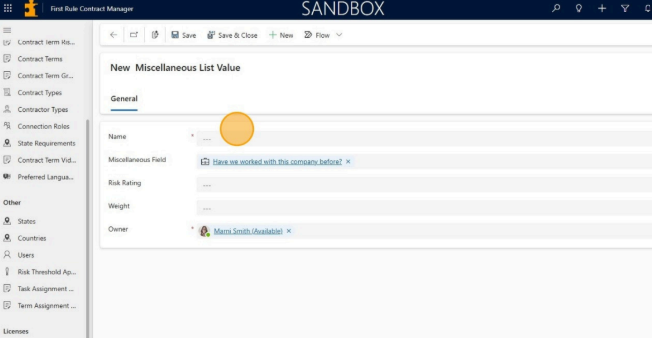
Click "New Miscellaneous List Value"
Click into the "Name" field and type out one of the answers to the question. Here I will type "No". Then press "Save & Close" at the top of the screen.
Once you create a NEW Project, you will see the Miscellaneous Field has been successfully added.